![apxium-logo.png]](https://support.apxium.com/hs-fs/hubfs/Logos/apxium-logo.png?width=144&height=50&name=apxium-logo.png)
This guide explains how to export client and group information from Xero Partner Hub and import it into your Apxium Audit Safe dashboard.
This process allows you to import client records and their associated group information into Audit Safe, ensuring that the dashboard reflects the latest information from Xero Partner Hub.
You can upload an updated CSV file whenever you need to add new clients or update existing client and group information.
1. Preparing the CSV File from Xero Partner Hub
Before importing the data into Audit Safe, you will need to export your client and group information from Xero Partner Hub using the PartnerHub Exporter.
Please ensure that the exported CSV file contains the following mandatory columns:
Mandatory columns:
- [Client] Client
- [Client] Group(s)
- [Client] UUID
Important:
- The three mandatory columns must be included in the CSV file for the import to work correctly.
- Any additional columns included in the export will be automatically ignored by Apxium.
- Please retain the original column names and formatting.
Sample CSV Format
2. Importing the CSV File into Audit Safe
Once the CSV file is ready, upload it directly to your Apxium Audit Safe dashboard by following these steps:
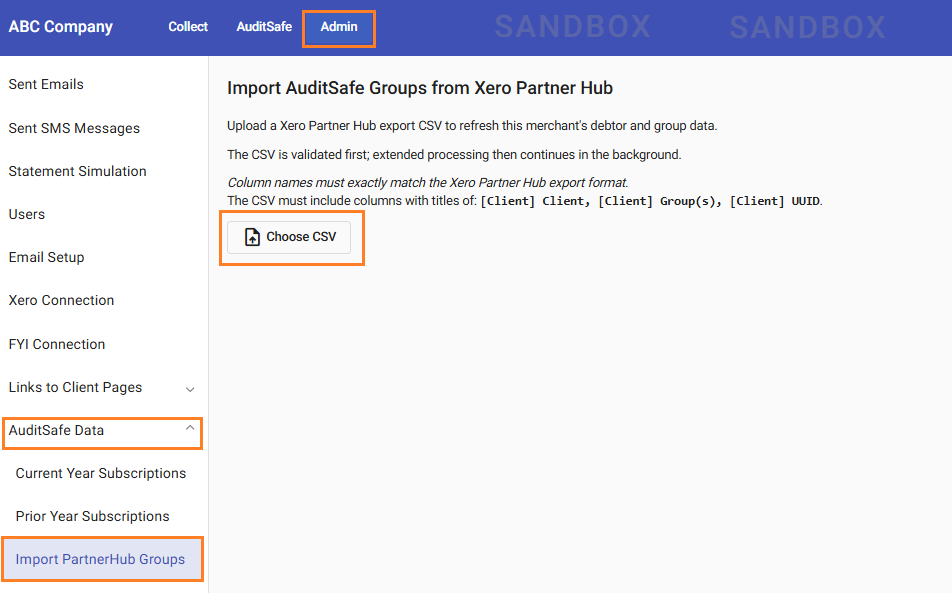
- Navigate to Admin > AuditSafe Data > Import PartnerHub Groups.
- Click Choose CSV and select the exported CSV file from your computer.
- Click Import Groups to submit the file.
3. Import Confirmation and Processing
Once the CSV file has been submitted:
- A confirmation message will appear, indicating the number of entities, groups, and clients accepted for import.
- The import will continue processing in the background.
- You should receive an email notification once the import has been completed, typically within approximately 10 minutes.